Setting Up a LAMP Stack on Ubuntu: Linux, Apache, MySQL, PHP
Introduction
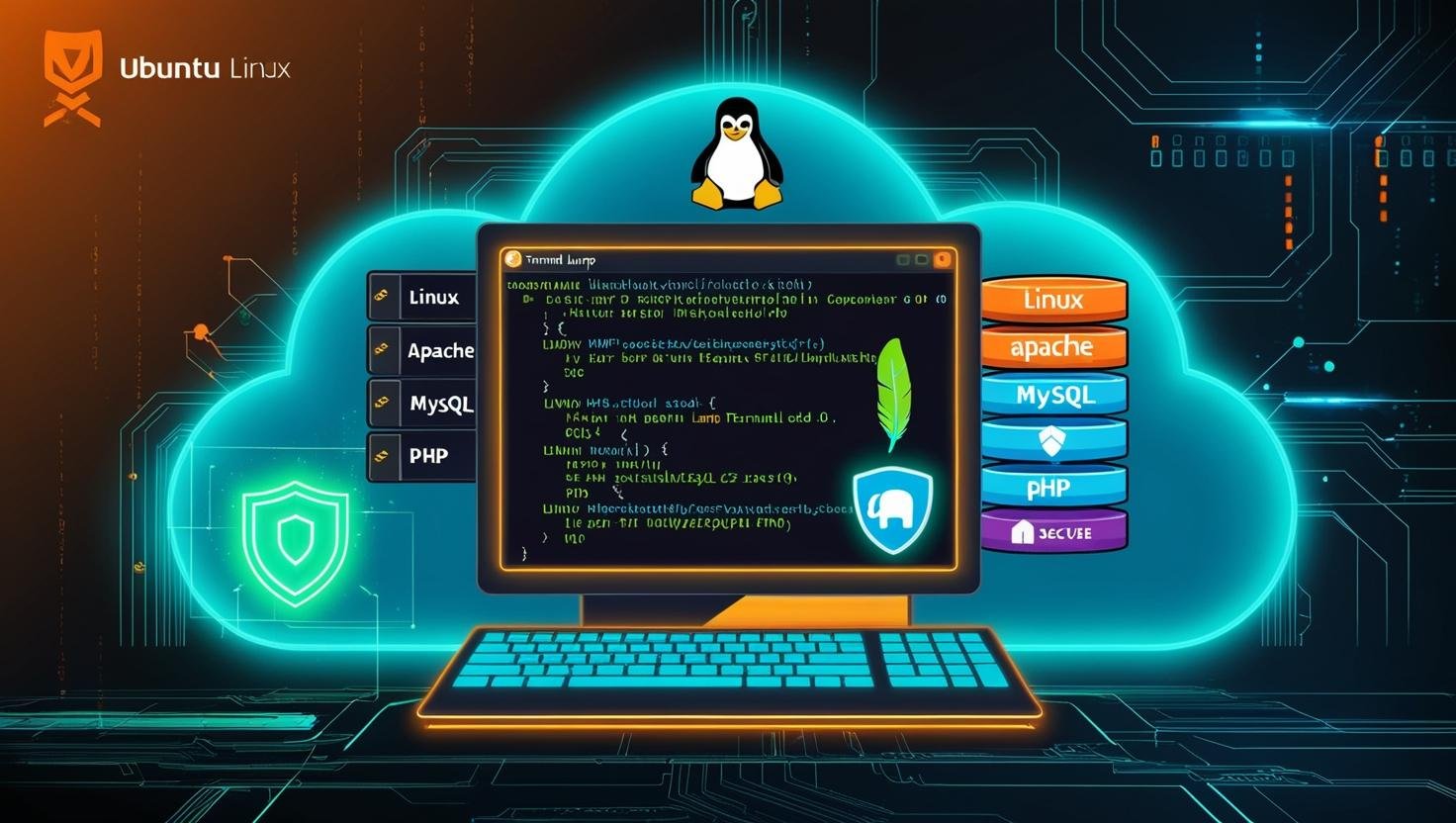
A LAMP stack is one of the most popular open-source software stacks for web development. It consists of four key components:
- Linux (Operating System)
- Apache (Web Server)
- MySQL (Database Management System)
- PHP (Server-Side Scripting Language)
This stack is widely used for hosting dynamic websites and web applications. In this guide, we’ll walk through the step-by-step process of installing and configuring a LAMP stack on Ubuntu, one of the most user-friendly Linux distributions.
Prerequisites
Before proceeding, ensure you have:
- A machine running Ubuntu 20.04/22.04 (or any recent version).
- Administrative (sudo) access to install packages.
- A stable internet connection to download the necessary packages.
Step 1: Update Ubuntu
Before installing any software, it’s good practice to update your system’s package list and upgrade existing packages.
Open a terminal and run:
sudo apt update && sudo apt upgrade -y
This ensures you have the latest security patches and software versions.
Step 2: Install Apache Web Server
Apache is a widely used web server that will handle HTTP requests.
Install Apache
Run the following command:
sudo apt install apache2 -y
Verify Apache Installation
Once installed, Apache should start automatically. Check its status:
sudo systemctl status apache2
You should see active (running) in the output.
Access Apache Default Page
Open a web browser and enter your server’s IP address:
http://your_server_ip
You should see the Apache2 Ubuntu Default Page, confirming Apache is working.
Adjust Firewall (If Enabled)
If you’re using UFW (Uncomplicated Firewall), allow HTTP and HTTPS traffic:
bash
sudo ufw allow 'Apache Full'
Verify the changes:
bash
sudo ufw status
Step 3: Install MySQL Database
MySQL (or MariaDB) will manage your website’s databases.
Install MySQL
Run:
bash
sudo apt install mysql-server -y
Secure MySQL Installation
Run the security script:
bash
sudo mysql_secure_installation
Follow the prompts to:
- Set a root password (recommended for security).
- Remove anonymous users.
- Disallow root login remotely.
- Remove test databases.
- Reload privilege tables.
Verify MySQL
Check if MySQL is running:
bash
sudo systemctl status mysql
Log in to MySQL:
bash
sudo mysql -u root -p
Enter your root password. Exit with:
sql
exit;
Step 4: Install PHP
PHP processes dynamic content and interacts with MySQL.
Install PHP and Extensions
Run:
bash
sudo apt install php libapache2-mod-php php-mysql -y
This installs:
- PHP core
- Apache PHP module
- MySQL support for PHP
Verify PHP Installation
Create a test file:
bash
echo "<?php phpinfo(); ?>" | sudo tee /var/www/html/info.php
Now, visit:
http://your_server_ip/info.php
You should see the PHP information page, confirming PHP is working.
(Optional) Install Additional PHP Modules
To support common frameworks and applications, install additional modules:
bash
sudo apt install php-curl php-gd php-mbstring php-xml php-zip -y
Restart Apache to apply changes:
bash
sudo systemctl restart apache2
Step 5: Test the LAMP Stack
Let’s create a simple PHP script that connects to MySQL.
Create a Test Database
Log in to MySQL:
bash
sudo mysql -u root -p
Create a database and user:
sql
CREATE DATABASE test_db;
CREATE USER 'test_user'@'localhost' IDENTIFIED BY 'password123';
GRANT ALL PRIVILEGES ON test_db.* TO 'test_user'@'localhost';
FLUSH PRIVILEGES;
exit;
Create a PHP Script to Test Database Connection
Create a new file:
bash
sudo nano /var/www/html/db_test.php
Add the following code (replace credentials if different):
php
<?php
$db_host = 'localhost';
$db_user = 'test_user';
$db_pass = 'password123';
$db_name = 'test_db';

$conn = new mysqli($db_host, $db_user, $db_pass, $db_name);

if ($conn->connect_error) {
    die("Connection failed: " . $conn->connect_error);
} else {
    echo "Connected to MySQL successfully!";
}
?>
Save and exit (Ctrl + X, then Y).
Now, visit:
http://your_server_ip/db_test.php
If you see “Connected to MySQL successfully!”, your LAMP stack is fully functional!
Step 6: Secure Your LAMP Stack
Remove the PHP Info Page
For security, delete the info.php file:
bash
sudo rm /var/www/html/info.php
Secure Apache with HTTPS (Optional but Recommended)
Install Let’s Encrypt SSL Certificate:
bash
sudo apt install certbot python3-certbot-apache -y
sudo certbot --apache -d your_domain.com
Follow the prompts to enable HTTPS.
Regular Updates
Keep your system secure by running:
bash
sudo apt update && sudo apt upgrade -y
Conclusion
You’ve successfully set up a LAMP stack (Linux, Apache, MySQL, PHP) on Ubuntu! This stack is now ready to host dynamic websites, blogs (like WordPress), or custom web applications.
Next Steps
- Install phpMyAdmin for a graphical MySQL interface.
- Deploy a WordPress or Laravel application.
- Configure virtual hosts for multiple websites.
If you encounter issues, check logs:
- Apache logs:
/var/log/apache2/error.log - MySQL logs:
/var/log/mysql/error.log
Happy coding!