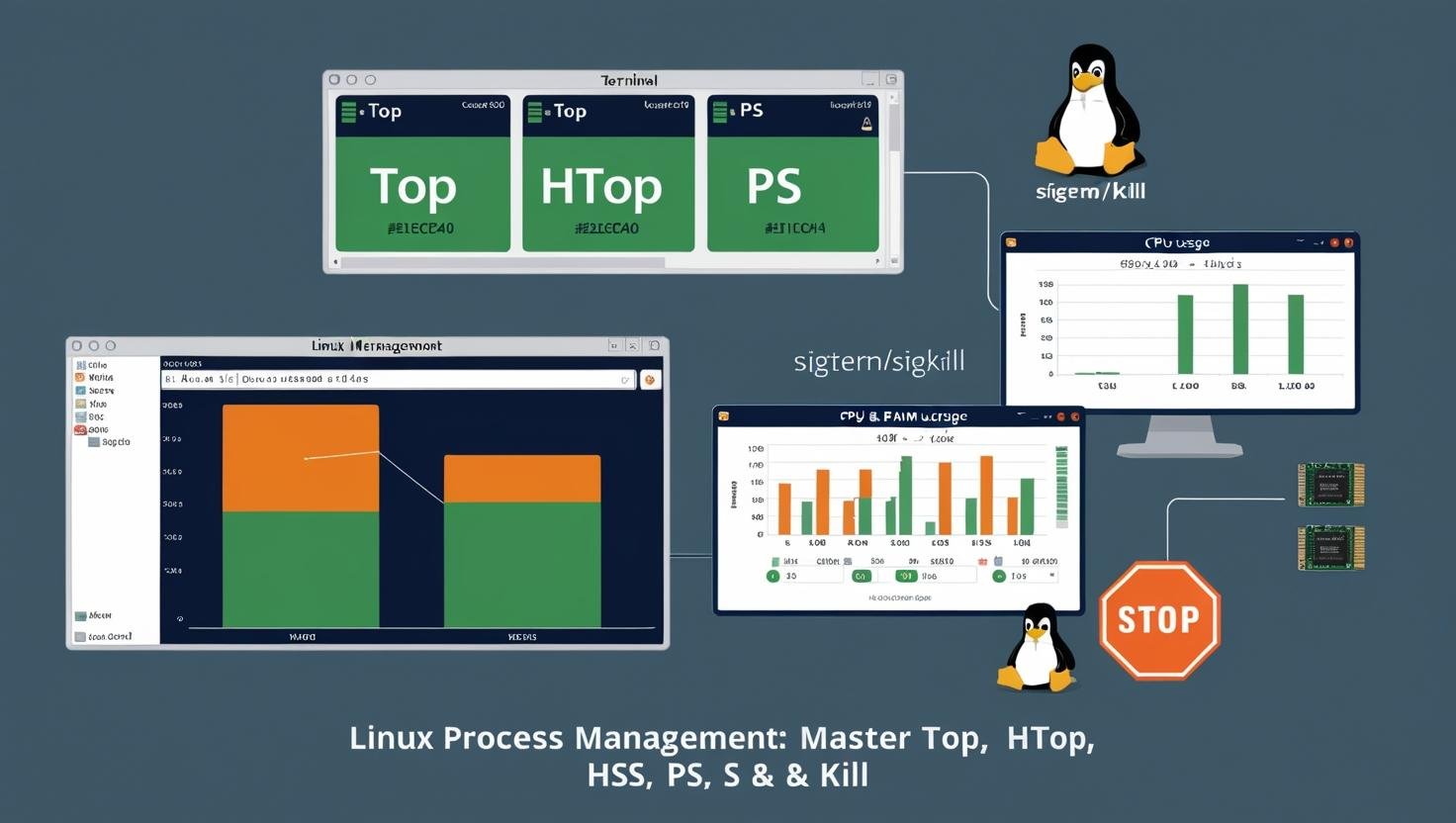
Linux Process Management: Understanding top, htop, ps, and kill
Process management is a critical component of system administration in any operating system, and Linux offers powerful tools to monitor and control running processes. Whether you’re a beginner or an experienced user, understanding how to inspect and manage processes using commands like top, htop, ps, and kill can help keep your system healthy, responsive, and secure.
In this article, we’ll explore the fundamentals of Linux process management and dive deep into four essential commands: top, htop, ps, and kill.
What Is a Process in Linux?
A process is an instance of a running program. In Linux, every process is assigned a unique Process ID (PID). The operating system manages these processes by allocating system resources such as CPU and memory.
There are two main types of processes:
- Foreground processes: Initiated and run in the terminal.
- Background processes: Run independently of the terminal session.
Linux provides several built-in tools to view and manage these processes.
1. Using top – Real-Time System Monitor
top is one of the most commonly used commands to monitor system performance in real time. It displays a dynamic, real-time view of running processes.
Key Features:
- Displays CPU and memory usage
- Shows process information such as PID, user, priority, and runtime
- Allows sorting by various columns
How to Use:
$ top
Important Shortcuts Inside top:
P: Sort by CPU usageM: Sort by memory usagek: Kill a processq: Quit
Pros:
- Available on all Linux systems
- Low resource usage
Cons:
- Interface can be intimidating for new users
- Limited customization
2. Using htop – Interactive Process Viewer
htop is a more modern and user-friendly alternative to top. It provides a colorful, interactive interface and better usability.
Installation:
$ sudo apt install htop # Debian/Ubuntu
$ sudo yum install htop # CentOS/RHEL
How to Use:
$ htop
Features:
- Color-coded metrics for CPU, memory, and swap
- Mouse support for process selection
- Easy-to-use interface for filtering and searching
Key Controls:
- Arrow keys: Navigate
F3: SearchF6: Sort columnsF9: Kill a processF10: Exit
Pros:
- Better interface than
top - Easier to filter and search
- More intuitive for beginners
Cons:
- May not be pre-installed on all distributions
- Slightly higher resource usage
3. Using ps – Snapshot of Current Processes
ps (process status) provides a static snapshot of current processes. Unlike top and htop, it doesn’t update in real time.
Common Usage:
$ ps # Show current shell processes
$ ps -e # Show all processes
$ ps aux # Detailed information for all processes
$ ps -ef # Full-format listing
Filtering:
$ ps -u username # Processes for a specific user
$ ps -p 1234 # Info for process with PID 1234
Pros:
- Ideal for scripting
- Simple and lightweight
Cons:
- No real-time updates
- Less interactive
4. Using kill – Terminate Processes
Sometimes, you need to stop a process that’s misbehaving. That’s where the kill command comes in. Despite its name, it sends signals to processes—not always to kill them.
Common Syntax:
$ kill # Sends default TERM signal
$ kill -9 # Sends SIGKILL (force kill)
$ kill -15 # Sends SIGTERM (graceful stop)
How to Find a PID:
$ ps aux | grep program_name
$ pidof program_name
killall Command:
$ killall firefox # Kills all processes named firefox
Pros:
- Effective way to manage rogue processes
- Multiple signal options for different needs
Cons:
- Risk of data loss if forcefully killing a critical process
Bonus: Signals in Linux
Linux processes respond to signals, which are messages sent by the kernel or other processes. Here are some commonly used signals:
| Signal | Number | Description |
|---|---|---|
| TERM | 15 | Gracefully stop process |
| KILL | 9 | Forcefully stop process |
| HUP | 1 | Reload configuration |
| INT | 2 | Interrupt (like Ctrl+C) |
Best Practices for Process Management
- Monitor Regularly: Use
toporhtopto keep tabs on CPU/memory usage. - Use Graceful Termination First: Try
kill -15before usingkill -9. - Avoid Killing System Processes: Terminating vital processes may crash your system.
- Automate with Scripts: Combine
ps,grep, andkillfor automated control.
Conclusion
Understanding Linux process management is vital for maintaining system performance and stability. Whether you prefer the real-time capabilities of top and htop, the scripting potential of ps, or the direct control of kill, each command plays a valuable role.
By mastering these tools, you’ll be well-equipped to handle tasks ranging from monitoring system load to terminating unresponsive applications. In a world where uptime and efficiency are critical, knowing how to manage processes effectively can make all the difference.