Firewall Management with UFW and iptables in Linux
Introduction
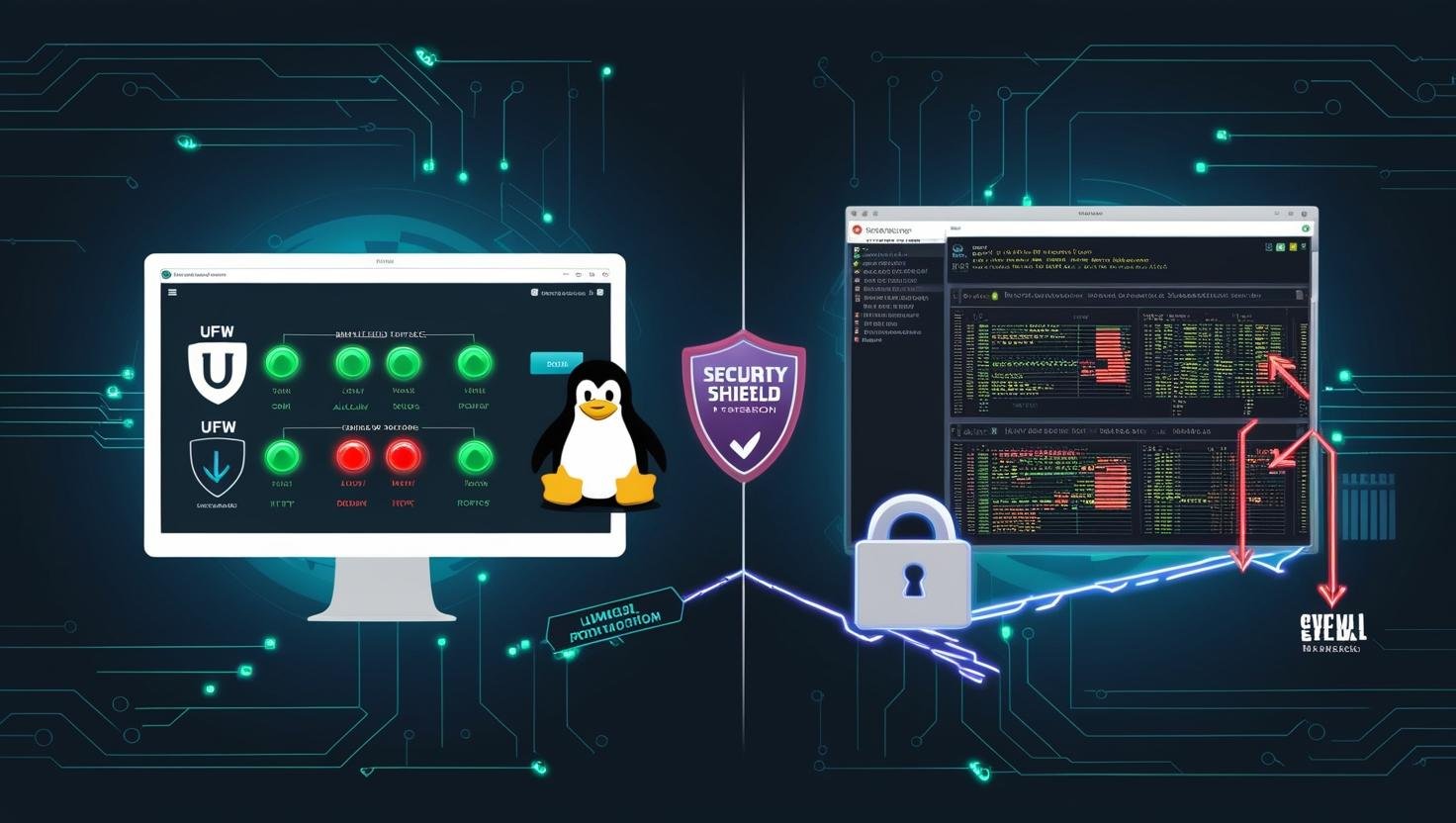
Firewalls are a critical component of Linux system security, acting as a barrier between your system and potential threats. In Linux, two primary tools for firewall management are:
- UFW (Uncomplicated Firewall) – A user-friendly interface for managing iptables rules.
- iptables – A powerful, low-level firewall utility that provides granular control over network traffic.
This guide will cover how to configure and manage firewalls using both UFW and iptables, including basic rules, advanced filtering, and best practices for securing your system.
1. Understanding Firewalls in Linux
What is a Firewall?
A firewall is a network security system that monitors and controls incoming and outgoing traffic based on predefined security rules. It helps prevent unauthorized access while allowing legitimate communications.
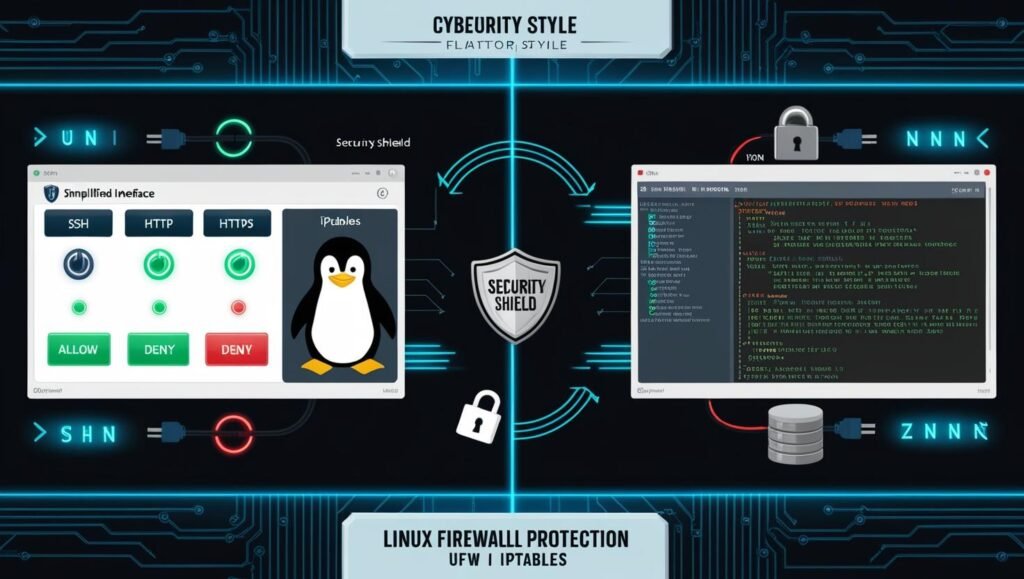
UFW vs. iptables
| Feature | UFW | iptables |
|---|---|---|
| Ease of Use | ✅ Simple, beginner-friendly | ❌ Complex, manual rule writing |
| Flexibility | ❌ Limited to basic rules | ✅ Full control over packet filtering |
| Use Case | Quick setups, personal servers | Advanced networking, enterprise security |
When to Use Which?
- UFW: Best for beginners or simple firewall needs.
- iptables: Required for custom, complex rules (e.g., NAT, port forwarding).
2. Getting Started with UFW
Installation & Basic Setup
UFW is pre-installed on Ubuntu/Debian. If not:
bash
sudo apt install ufw
Enable & Check Status
bash
sudo ufw enable  # Turn on firewall
sudo ufw status  # View active rules
Allow/Deny Traffic
bash
sudo ufw allow 22/tcp        # Allow SSH
sudo ufw deny 80/tcp         # Block HTTP
sudo ufw allow from 192.168.1.100  # Allow specific IP
Delete a Rule
bash
sudo ufw status numbered     # List rules with numbers
sudo ufw delete 2            # Delete rule #2
Reset UFW
bash
sudo ufw reset # Wipe all rules
3. Advanced UFW Configurations
Rate Limiting (Prevent Brute Force Attacks)
bash
sudo ufw limit 22/tcp # Allow SSH but block after multiple attempts
Logging Firewall Activity
bash
sudo ufw logging on # Logs stored in /var/log/ufw.log
Application Profiles
UFW includes predefined rules for common services:
bash
sudo ufw app list  # Show available profiles
sudo ufw allow 'Nginx Full'  # Allow HTTP & HTTPS
4. Working with iptables
iptables Basics
iptables uses chains (INPUT, OUTPUT, FORWARD) and tables (filter, nat, mangle).
View Current Rules
bash
sudo iptables -L -v # List all rules
Allow/Deny Traffic
bash
sudo iptables -A INPUT -p tcp --dport 22 -j ACCEPT  # Allow SSH
sudo iptables -A INPUT -p tcp --dport 80 -j DROP    # Block HTTP
Block an IP Address
bash
sudo iptables -A INPUT -s 192.168.1.100 -j DROP
Save iptables Rules
Rules are lost on reboot unless saved:
bash
sudo apt install iptables-persistent  # Debian/Ubuntu
sudo netfilter-persistent save
5. Advanced iptables Rules
Port Forwarding
bash
sudo iptables -t nat -A PREROUTING -p tcp --dport 80 -j REDIRECT --to-port 8080
NAT (Network Address Translation)
bash
sudo iptables -t nat -A POSTROUTING -o eth0 -j MASQUERADE
Prevent DDoS Attacks
bash
sudo iptables -A INPUT -p tcp --dport 80 -m limit --limit 25/minute --limit-burst 100 -j ACCEPT
6. Best Practices for Firewall Security
✅ Default Deny Policy – Block all traffic by default, then allow only what’s needed.
✅ Log Suspicious Activity – Monitor /var/log/ufw.log or /var/log/syslog.
✅ Regularly Update Rules – Remove unused rules to minimize attack surface.
✅ Use Fail2Ban – Automatically block brute-force attempts.
7. Troubleshooting Common Issues
“UFW Not Blocking Traffic”
- Check if another firewall (like iptables) is interfering.
- Verify rules with
sudo ufw status verbose.
“iptables Rules Not Persisting”
- Ensure
iptables-persistentis installed and saving rules.
“Can’t Access Server After Lockdown”
Conclusion
Managing firewalls with UFW and iptables is essential for securing Linux systems. While UFW simplifies basic configurations, iptables offers deep customization for advanced users.
Key Takeaways:
✔ Use UFW for quick, easy firewall setups.
✔ Use iptables for complex networking (NAT, port forwarding).
✔ Always default-deny and whitelist only necessary traffic.
✔ Monitor logs and update rules regularly.
Next Steps:
- Explore nftables (the modern replacement for iptables).
- Set up Fail2Ban for automated intrusion prevention.
By mastering these tools, you’ll significantly improve your Linux system’s security!